How to use the stopwatch
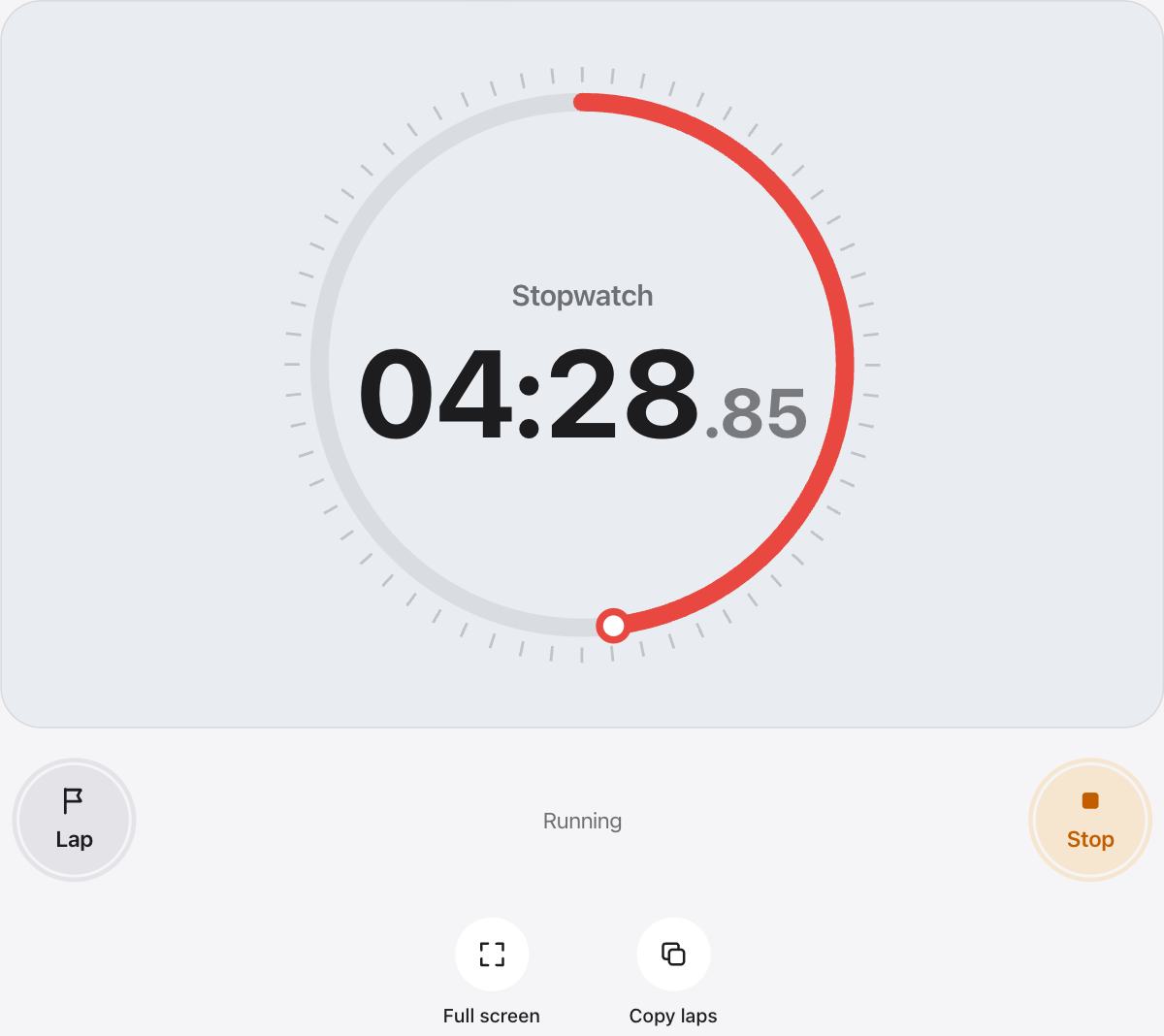
Press Start or the space bar to begin. Press Stop to pause the clock, then Start again to carry on from the same time.
While the stopwatch runs, the left button records a lap. When it is stopped, the same button resets the clock to zero. The ring around the digits fills once every minute, so you can read the seconds at a glance from across the room.
Laps and split times
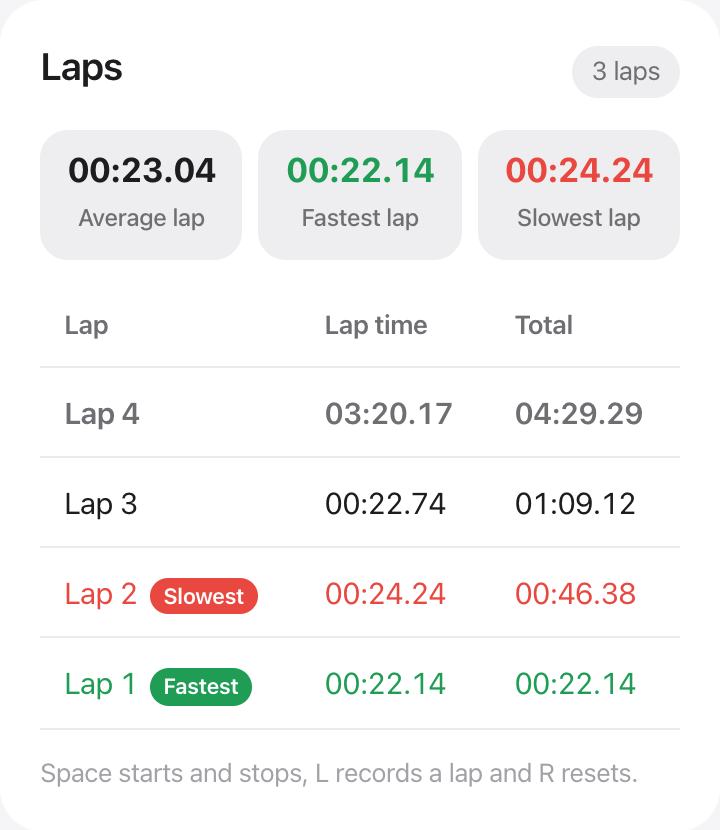
A lap is the time since the previous lap. The total is the time since you pressed Start. The table shows both, newest first, so you can see each stretch and the running total side by side.
Once you have two laps, urTimer marks the fastest lap in green and the slowest in red, and works out your average lap.
Keyboard shortcuts
The shortcuts work anywhere on the page unless you are typing in a field.
- Space starts and stops the clock
- L records a lap while the clock runs
- R resets the clock to zero
- Esc leaves full screen
Good uses for a stopwatch
- Timing runs, swims and laps around a track
- Checking how long a task or a recipe step really takes
- Practicing a speech, a reading or a song
- Science experiments and classroom races
- Puzzles, quizzes and speed challenges
Questions and answers
How accurate is the stopwatch?
It reads your device clock many times a second and shows hundredths of a second. It stays as accurate as the clock on your device and does not drift when the tab is in the background.
Does the stopwatch keep running if I close the tab?
Yes. urTimer saves the moment you pressed Start in this browser. Open the page again and the clock shows the right time, laps included.
Can I copy my lap times?
Press Copy laps to copy a plain table of lap numbers, lap times and totals. Paste it into a spreadsheet, a note or a message.
Can I use the stopwatch full screen?
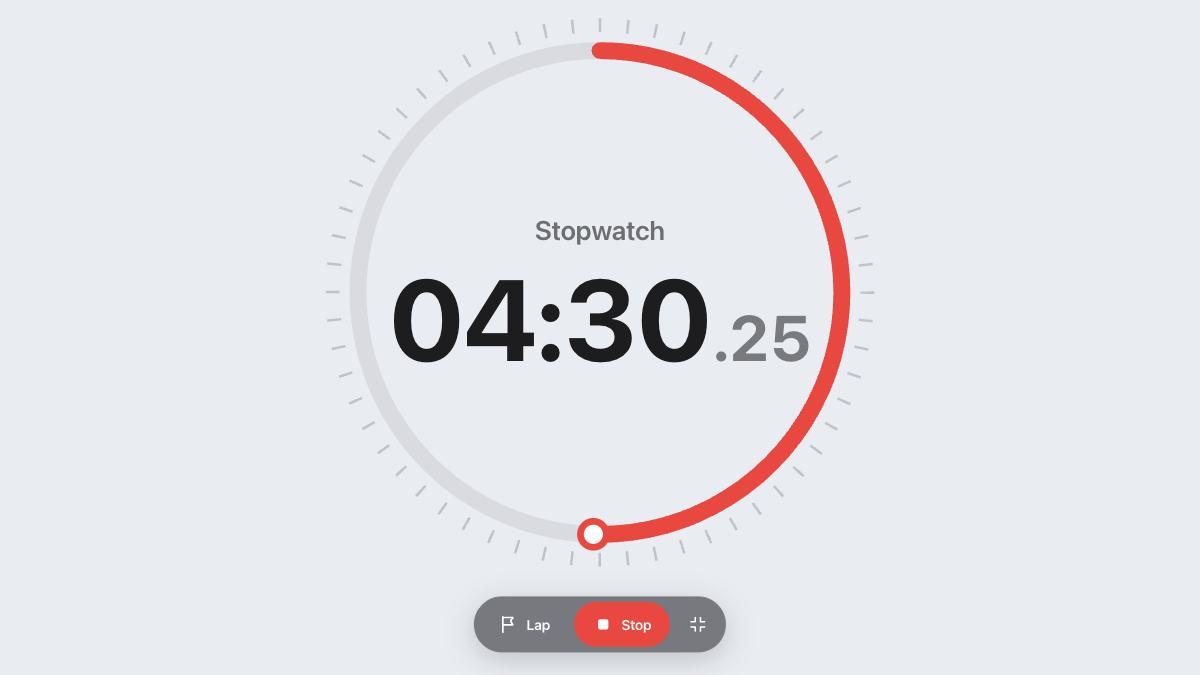
Press Full screen to show only the clock with large controls. It works well on a classroom projector or a TV across the room.
Is there a limit to how long it can run?
No. After an hour the display adds hours, and it keeps counting for as long as you need.