Practice at the real pace
Most talks run long because the speaker practiced without a clock. Rehearse with the timer and you will learn where to speed up and what to cut.
Aim to finish your practice run with about ten percent of the time left. Real talks tend to run a little slower than rehearsals.
Time each section
- Add the opening, each main point and the closing as tasks.
- Run them with Auto-start next to see which part runs long.
- Leave a few minutes for questions in your plan.
On stage
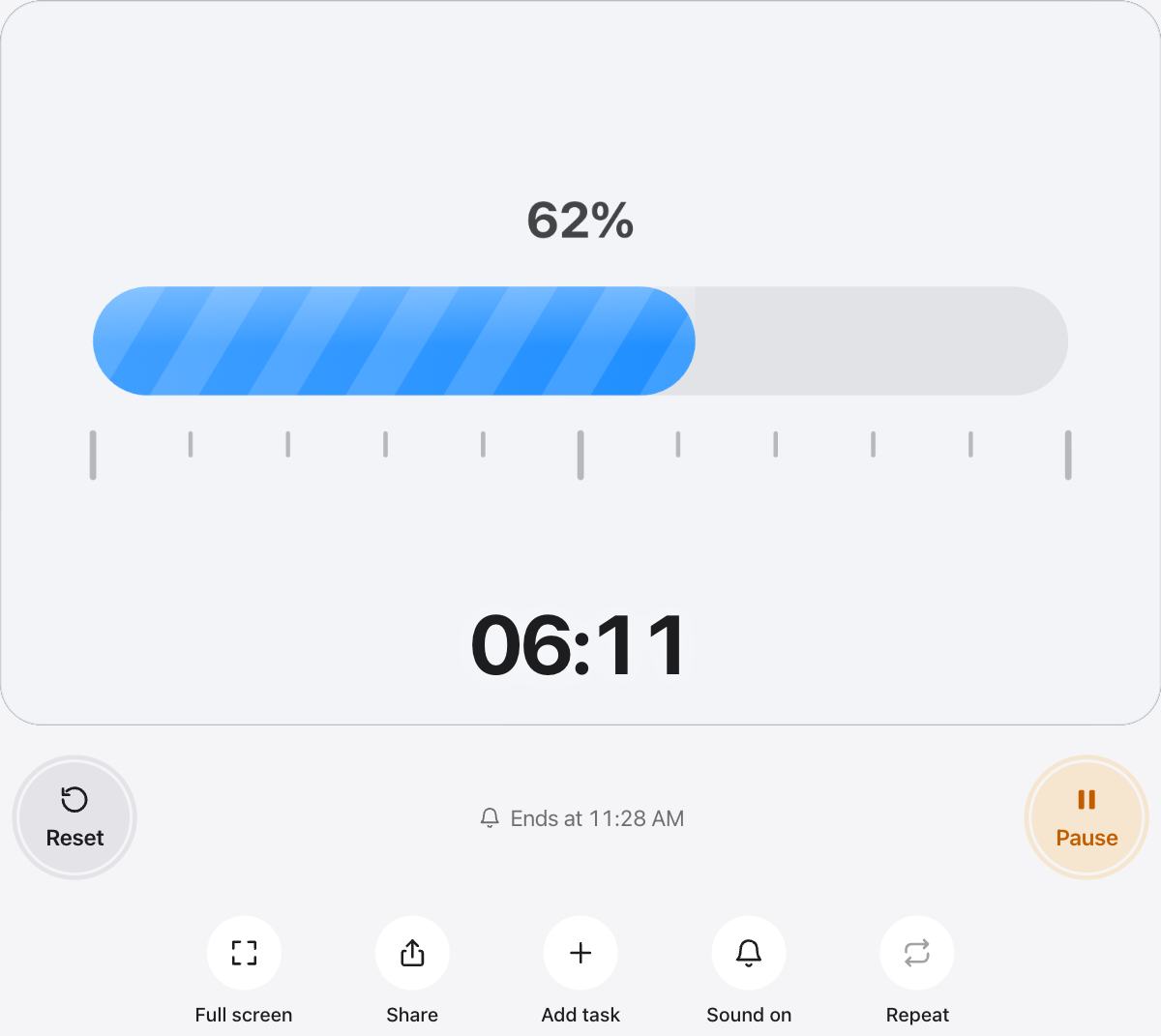
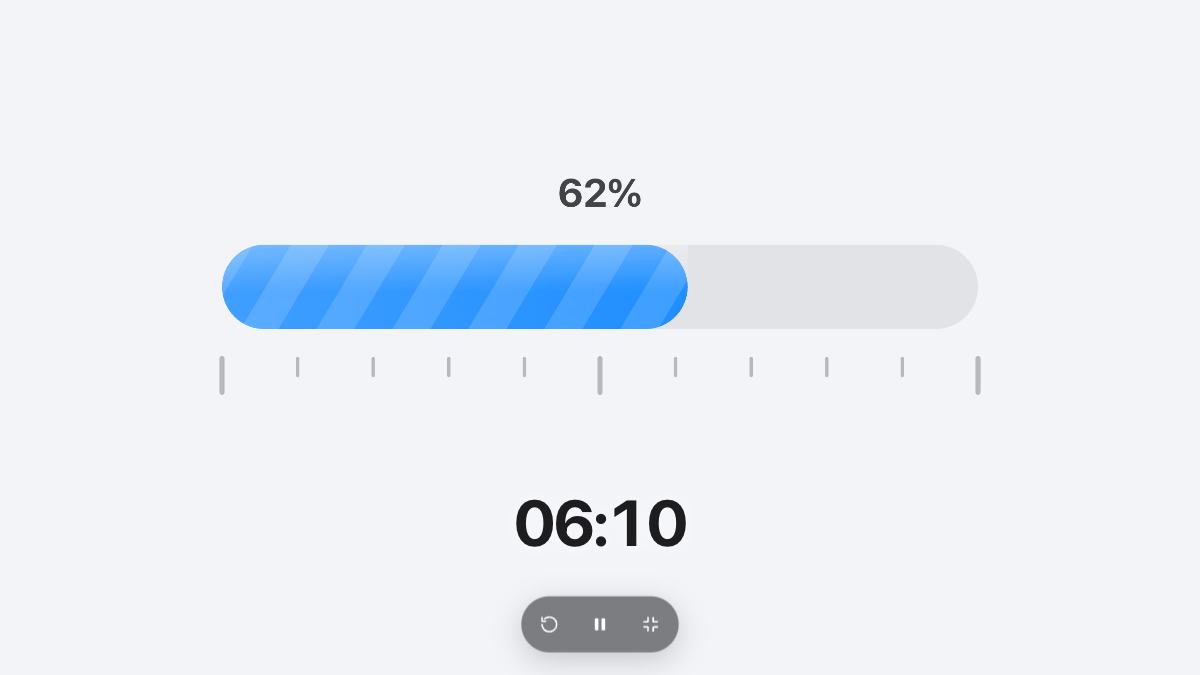
Put the timer on a laptop or a tablet facing you in Full screen. Turn off the sound so only you know when time is short.
Questions and answers
How long is an elevator pitch?
About one minute: long enough to say who you are, what you do and what you ask for.
How do I know when I am running out of time?
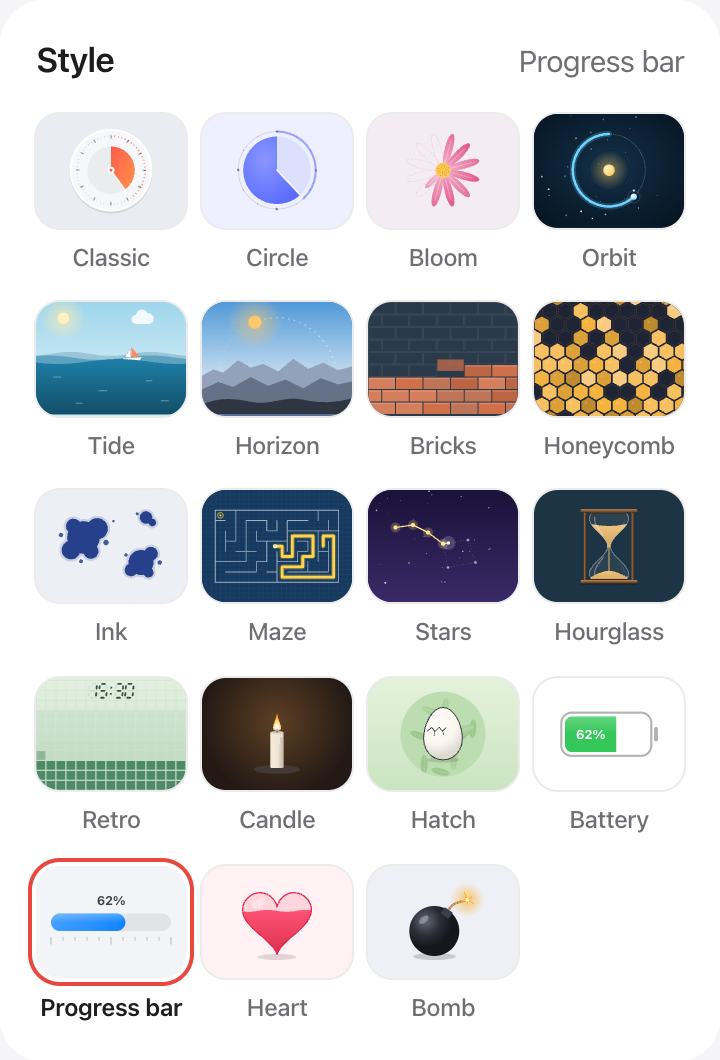
With the Progress bar style, the bar turns orange when a quarter of the time is left and red in the last tenth.
Can the audience see the timer?
Only if you show it. Use it on your own device, or put it on a shared screen for debates and student presentations.
Can I time several speakers?
Yes. Add one task per speaker and turn on Auto-start next. Each speaker gets the same clear countdown.