Meetings that end on time
When time is visible, people get to the point. A shared timer turns the agenda into something everyone keeps track of, not just the host.
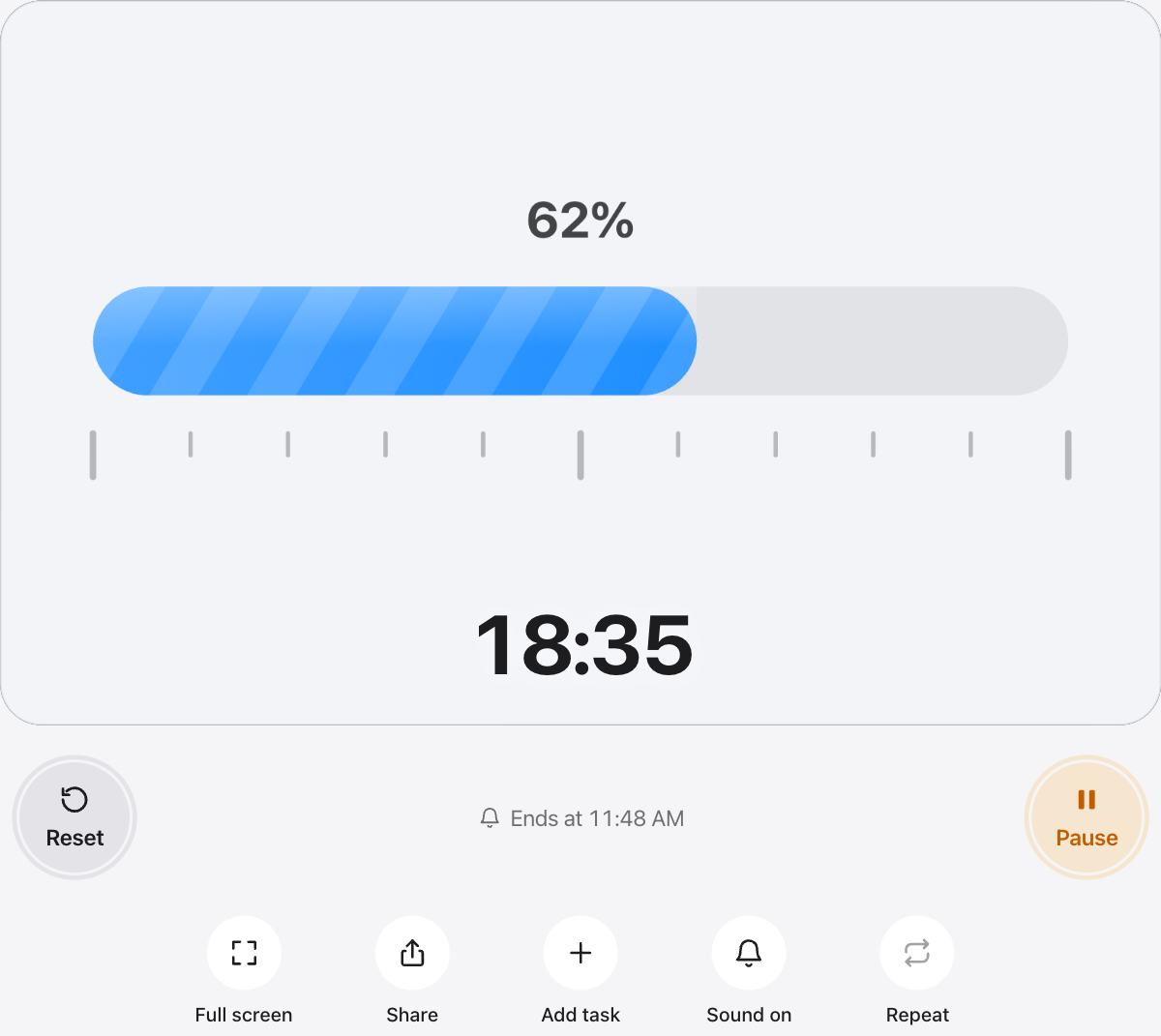
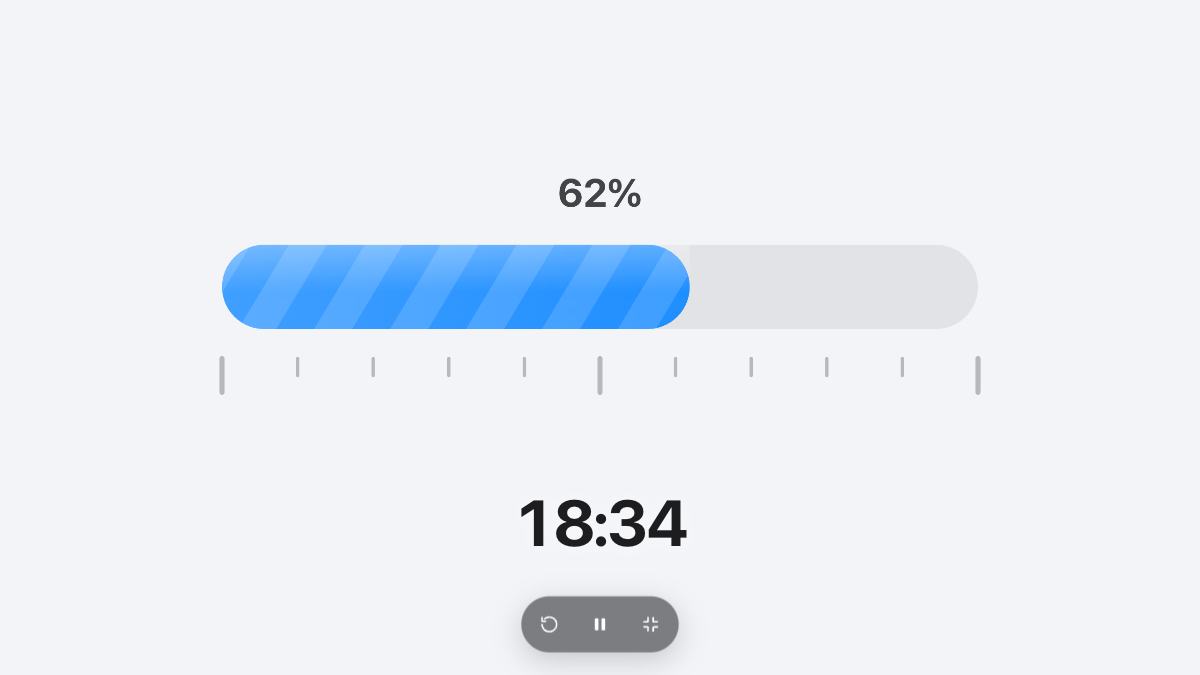
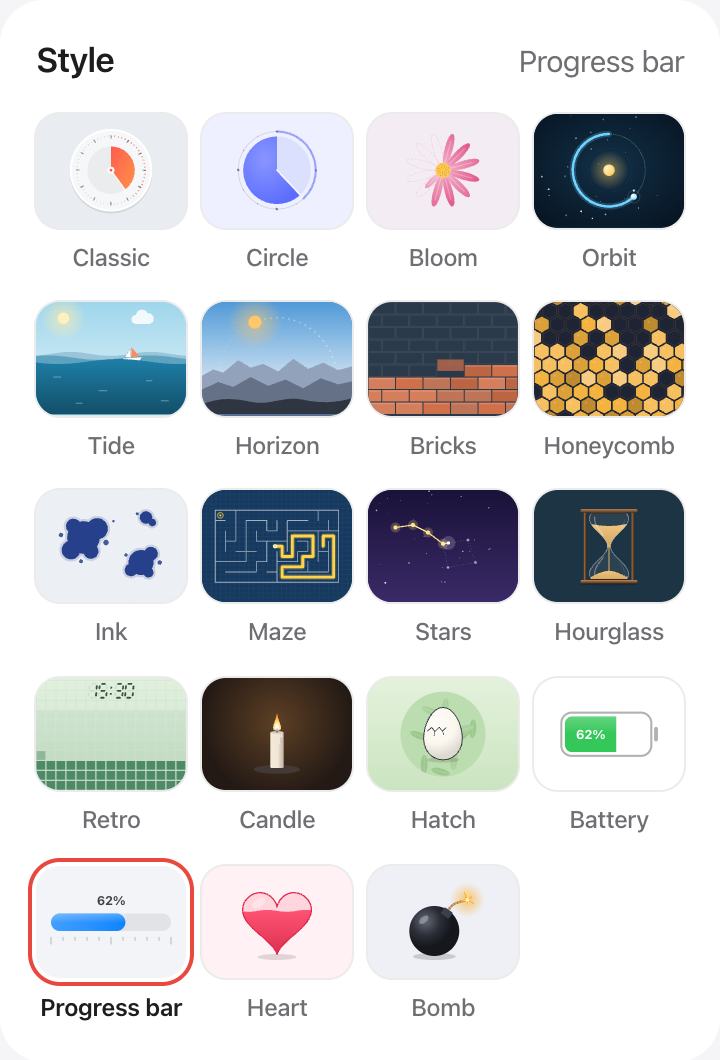
The Progress bar style shows the percentage left and turns orange and then red near the end, which is a polite warning without interrupting.
Time each agenda item
- Add each agenda item as a task with its own length.
- Press play on the first item when the meeting starts.
- Turn on Auto-start next to move through the agenda.
- Use Share to send the same timer to remote attendees.
For remote and hybrid teams
Share a browser tab with the timer in a video call, or send the link from Share so everyone can open the same countdown on their own screen.
Questions and answers
How long should a stand-up meeting be?
Most teams aim for 15 minutes or less. A visible timer helps each person keep their update short.
Can I time each speaker?
Yes. Add a task for each speaker with the same length, then run them one after another with Auto-start next.
Will the sound interrupt the meeting?
The chime is soft and short. You can turn it off with the Sound button and rely on the bar turning red instead.
Can attendees see the same timer?
Share your screen, or press Share to copy a link with the same length and style for everyone to open.