How to set a custom time
- Type hours, minutes and seconds in the boxes above the timer.
- Press Set timer, or press Enter.
- Press Start. Press it again to pause.
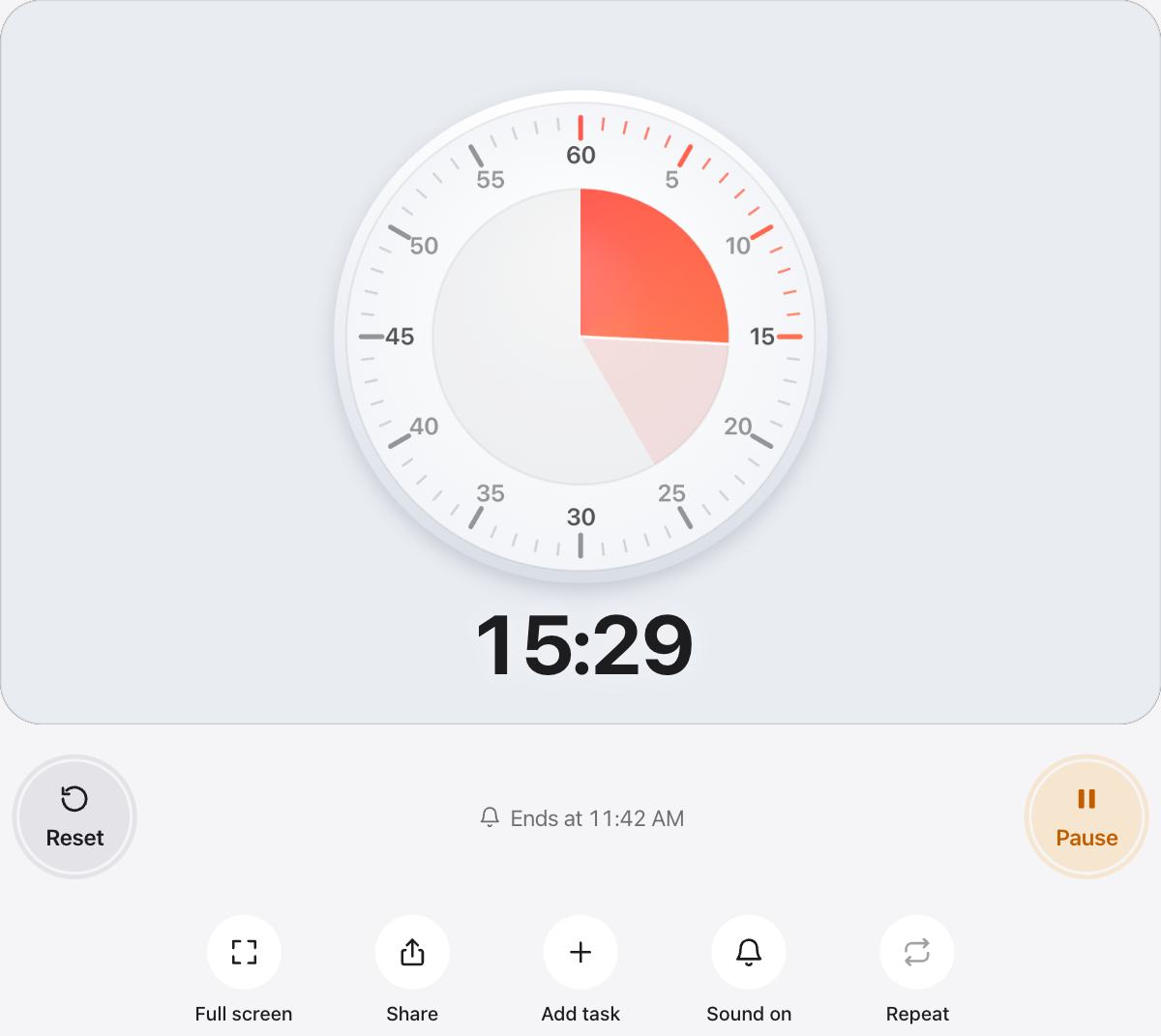
- On the Classic dial you can also drag the face to set whole minutes.
Share your timer
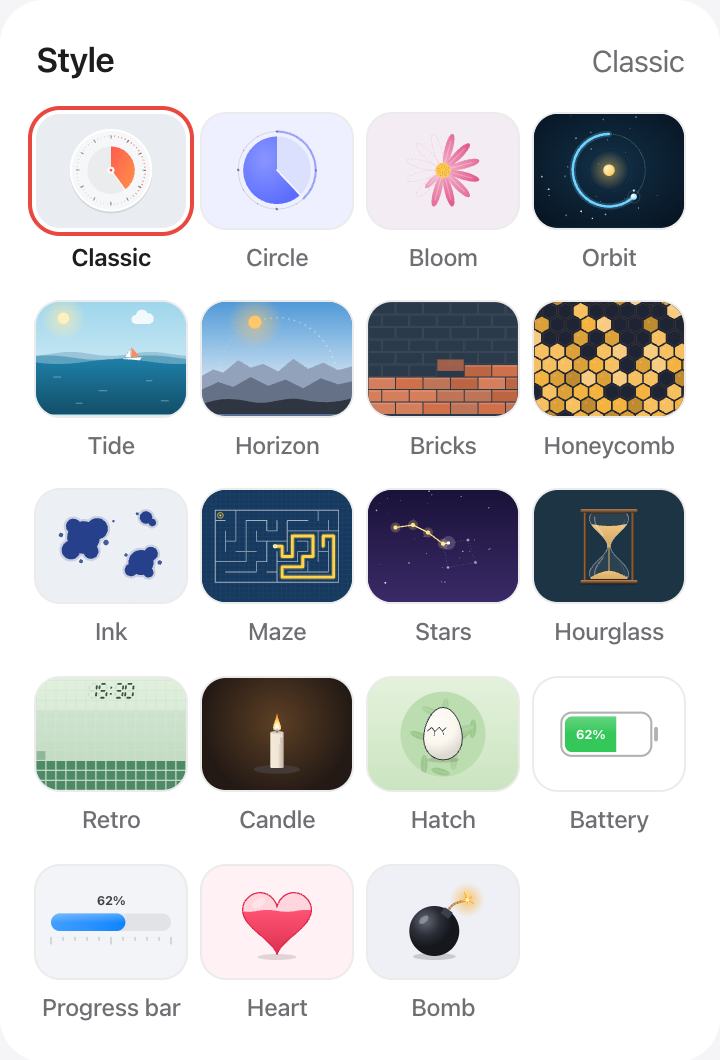
Press Share to copy a link that opens with the same length, style and colors. It is a quick way to give a class or a team the same countdown on every screen.
Save a set of timers
If you use the same lengths every day, add them as tasks. They stay in your browser, and you can run them one after another with Auto-start next.
Questions and answers
What is the longest timer I can set?
Up to 12 hours. For longer waits, such as the days until an event, use one of the countdown pages instead.
Can I set seconds, not just minutes?
Yes. Type any number of seconds in the seconds box, for example 1 minute and 30 seconds for a short interval.
Will my custom time be there next time?
Yes. The last length you set is kept in this browser, so the timer opens with it the next time you visit.
Does the timer work offline?
Once the page has loaded, the timer runs in your browser without a connection. Keep the tab open until it is done.