Why a timer helps a class
Transitions go faster when everyone can see how much time is left. A shared timer takes the teacher out of the role of the clock and keeps the room calm.
Younger students who can’t read numbers yet can still follow a shape that shrinks, drains or fills.
How to use it in class
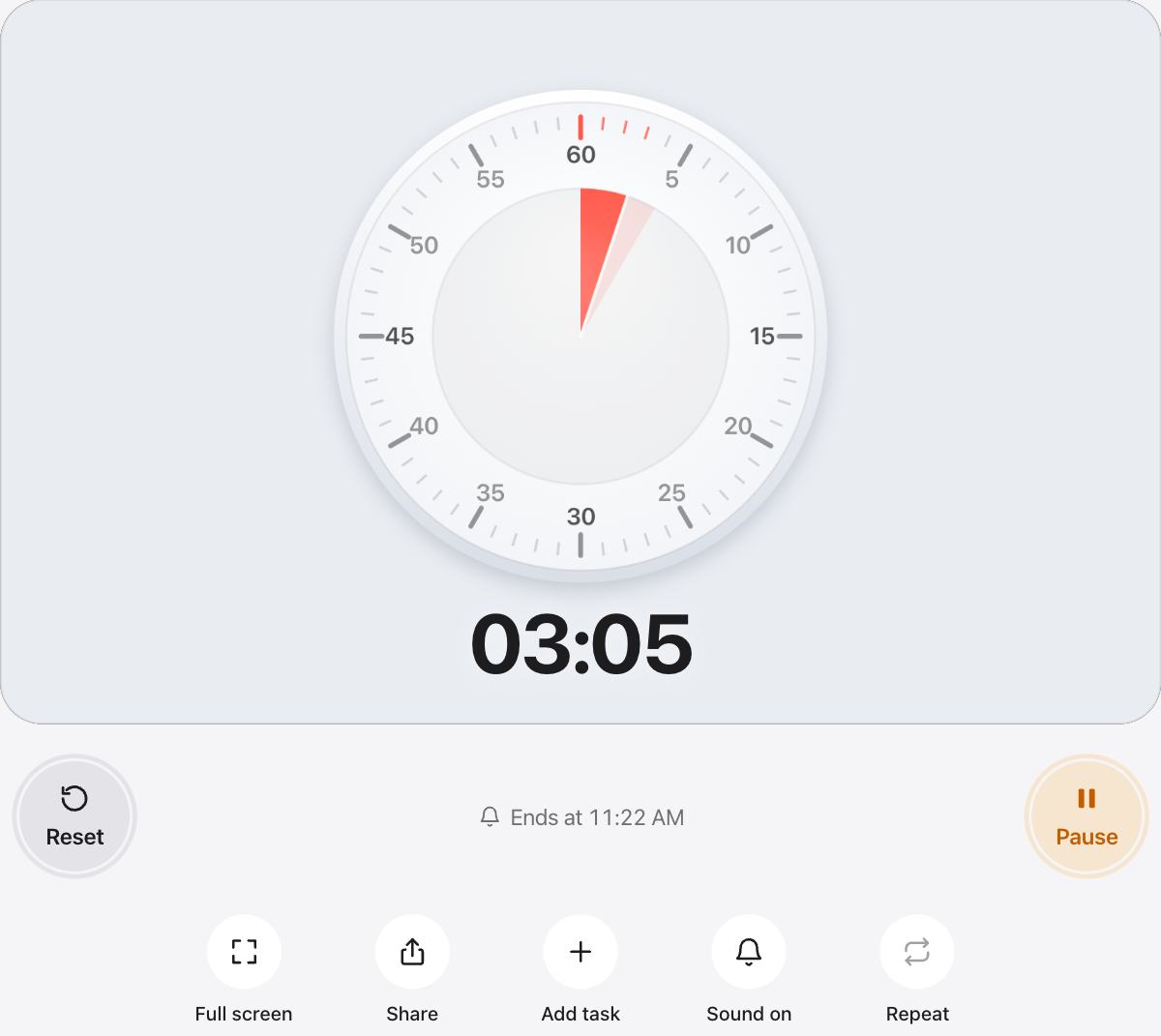
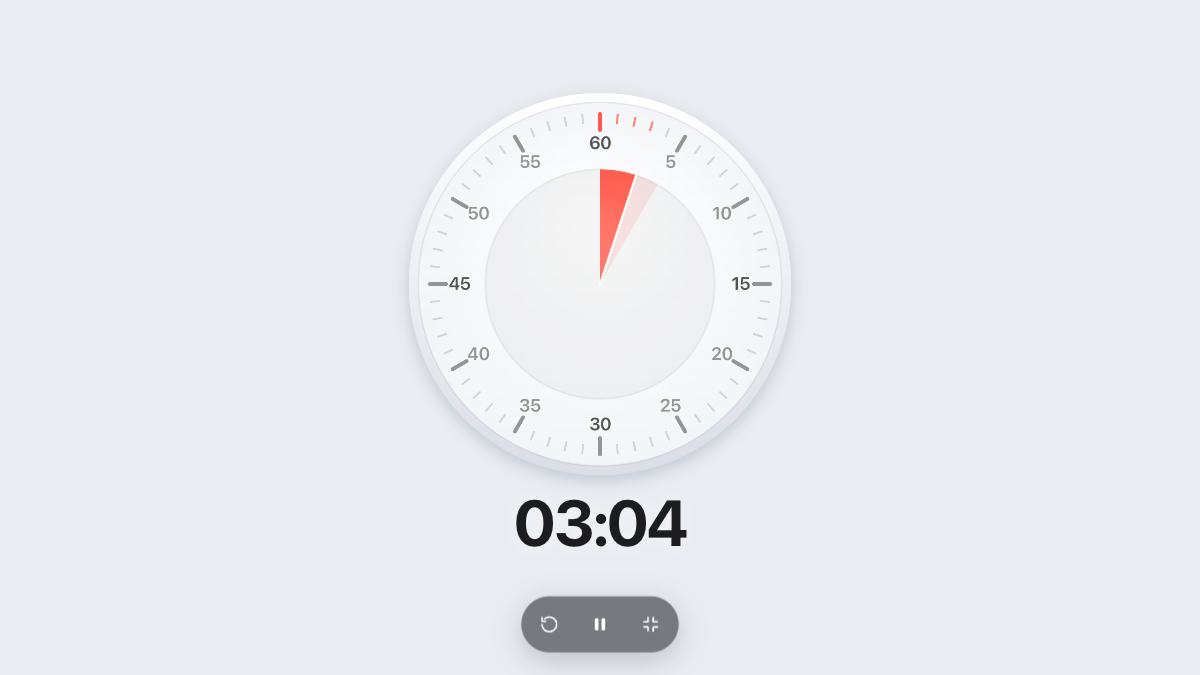
- Press Full screen and put the timer on the projector.
- Use a quick pick, or set any length with the presets.
- Turn off the sound for tests, or leave the soft chime on as the signal to stop.
- Plan the lesson as tasks and turn on Auto-start next to move from one part to the next.
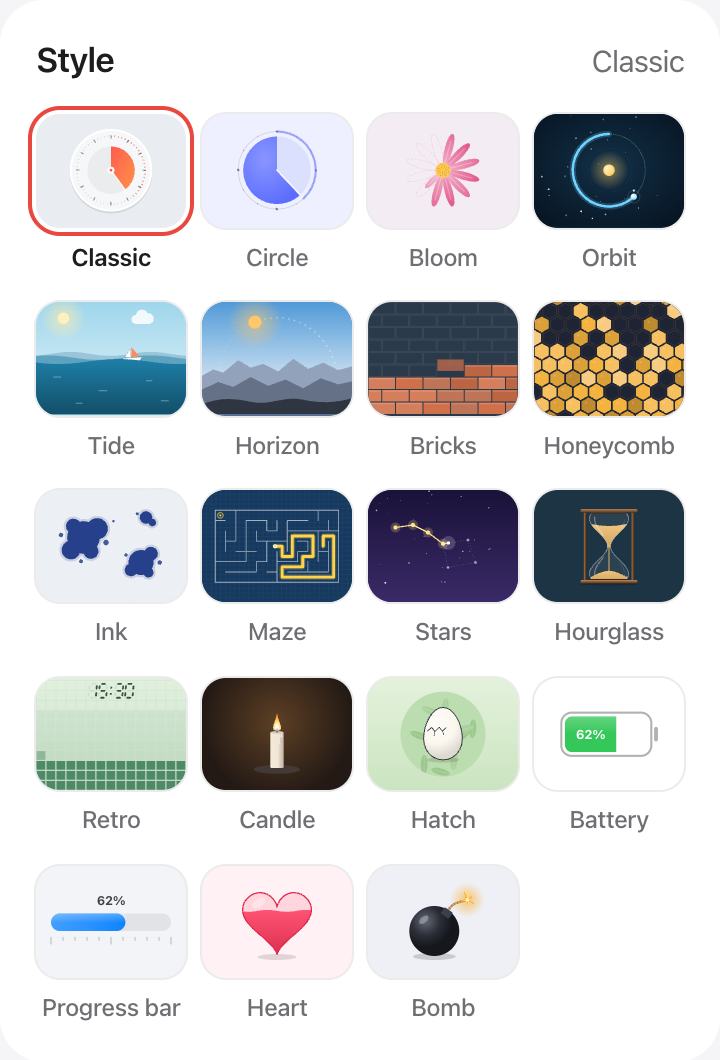
Pick a style for the age group
The Classic dial teaches older students to read a clock. For younger classes, try Hatch, Bricks or Tide, which turn waiting into something to watch.
Questions and answers
Can I show the timer on a projector?
Yes. Press Full screen and everything except the timer is hidden, so it is easy to read on a projector, a smart board or a TV.
Can students see the time without a sound?
Yes. The shape shows the time left at all times. Turn the sound off with the Sound button for tests and quiet work.
Can I run a whole lesson plan?
Add each part of the lesson as a task with its own length. Press play on the first task, and with Auto-start next on, the rest follow by themselves.
Do students need an account?
No. urTimer is free and has no sign-up. Your settings and tasks stay in your own browser.