A fair, visible clock
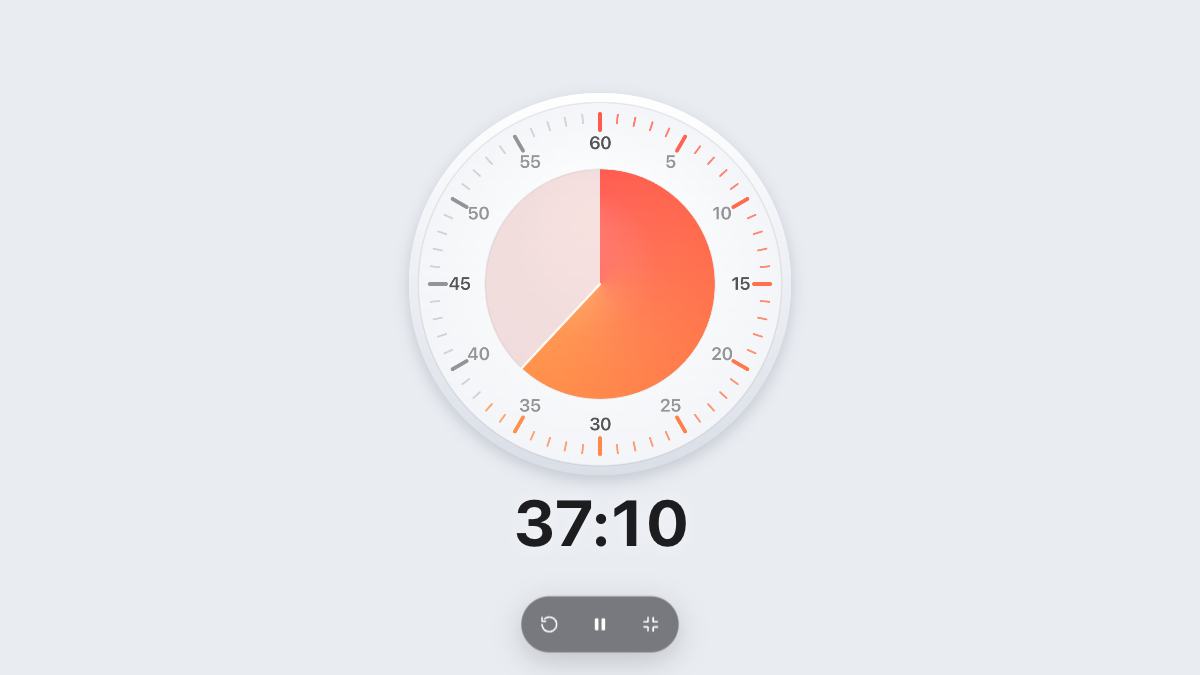
Students manage their time better when they can see it. A large timer on the projector answers “how long is left?” before anyone asks.
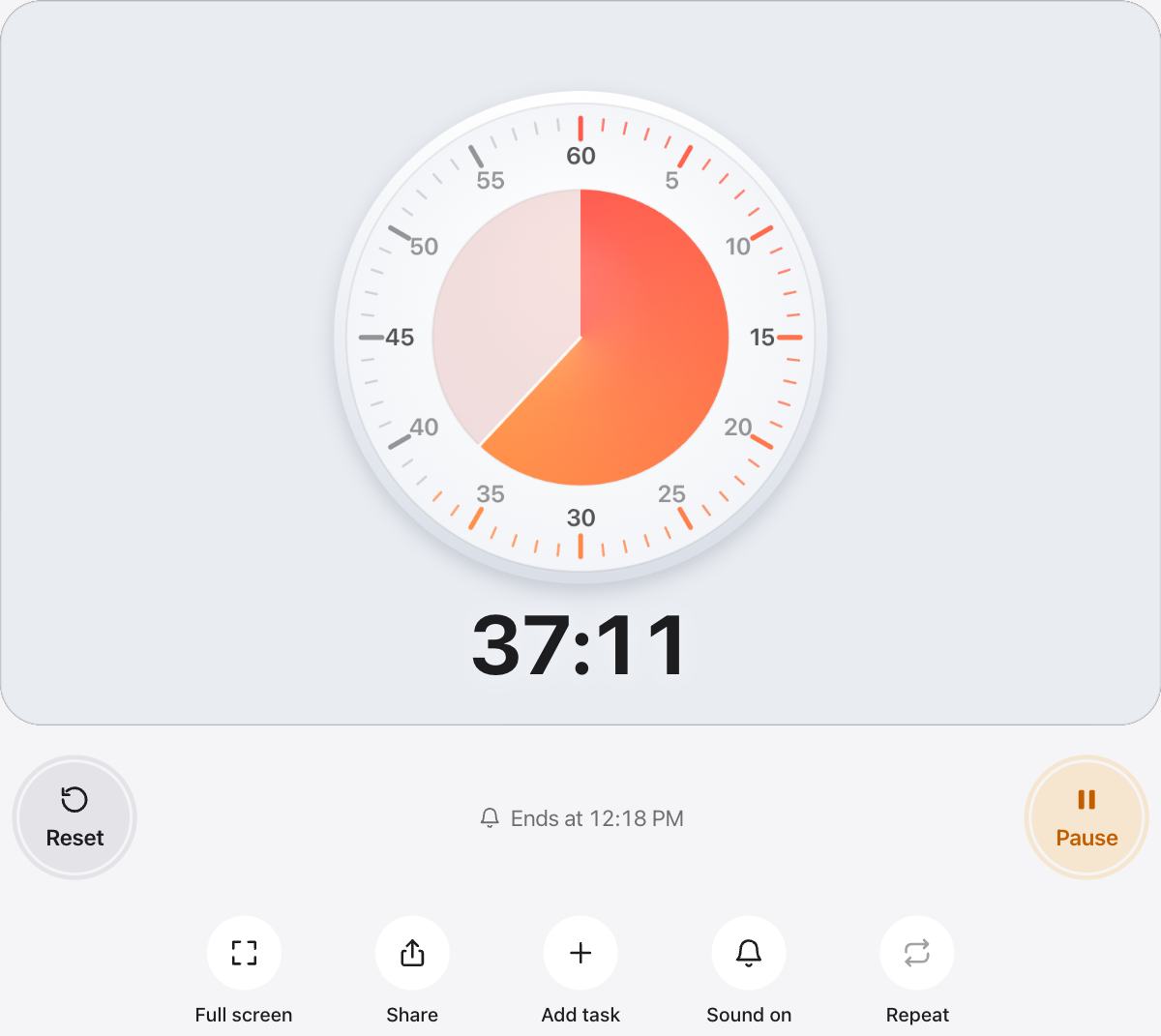
The status line shows the exact end time, so students can plan the last few minutes for checking.
For exam practice at home
- Set the real exam length and sit the paper in one go.
- Turn the sound on so you know when to stop writing.
- Use the last ten minutes to check your answers, as you would in the exam room.
Quiet by default
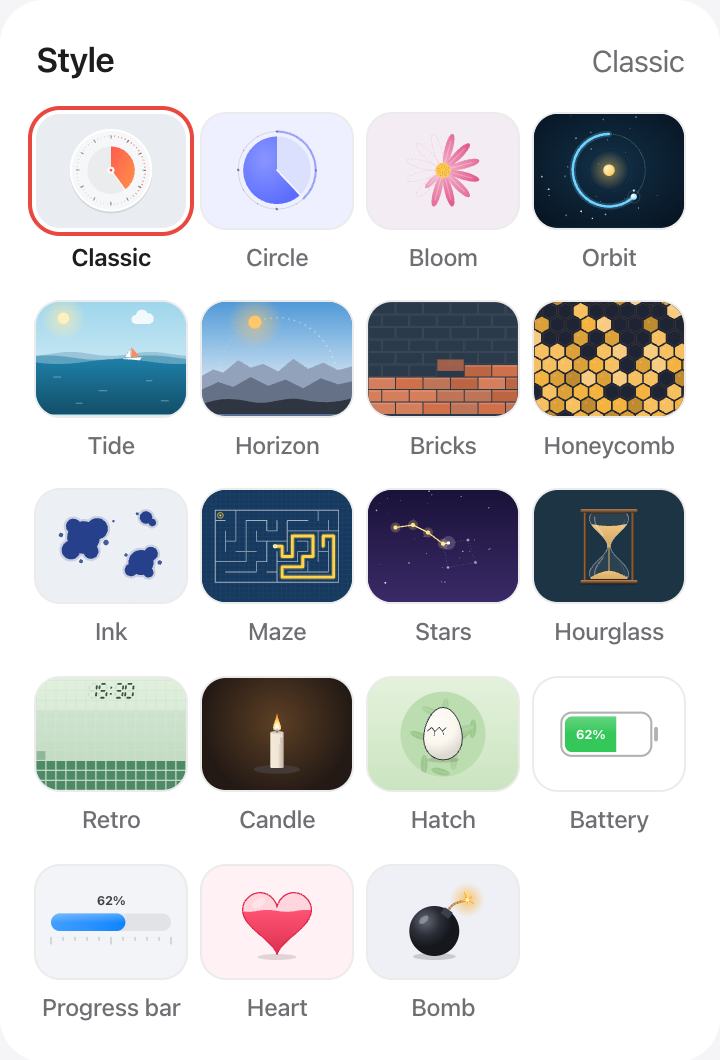
Turn the sound off for real exams so the chime doesn’t startle anyone, and let the shape and the end time do the work.
Questions and answers
Can I show the end time of the exam?
Yes. While the timer runs, the line next to the Start button shows the time it ends, for example “Ends at 11:30 AM”.
What if the exam is interrupted?
Press Pause. The timer keeps the time left, and Resume carries on from there.
Can I set more than three hours?
Yes. Choose Custom and set any length up to 12 hours.
Will it stay on screen during the whole exam?
While the timer runs, urTimer keeps the screen awake. Use Full screen to hide everything else.